
If you haven't used Microsoft teams before it is highly recommended you try joining the meeting before the actual meeting date to confirm you can get to the meeting lobby.
The online meeting space can be accessed at any time if you want to confirm your device's ability to join before the actual meeting date.
Youtube, bing, or google search are all excellent resources for troubleshooting. You can also email if you have questions or issues.
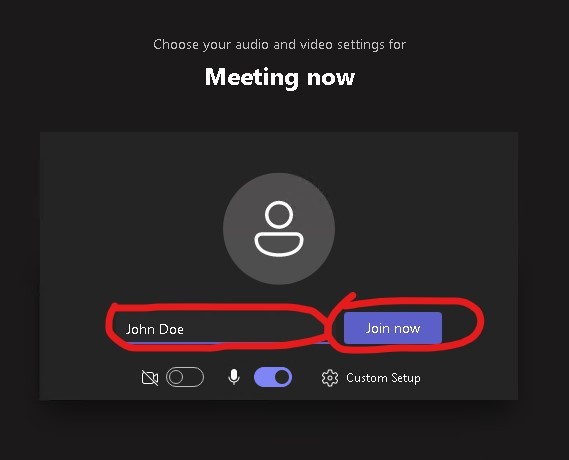
On the next screen enter your full name and click the "Join now" button.
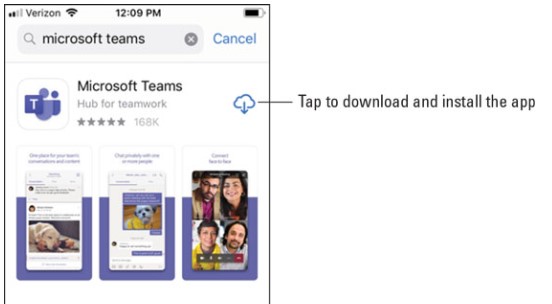
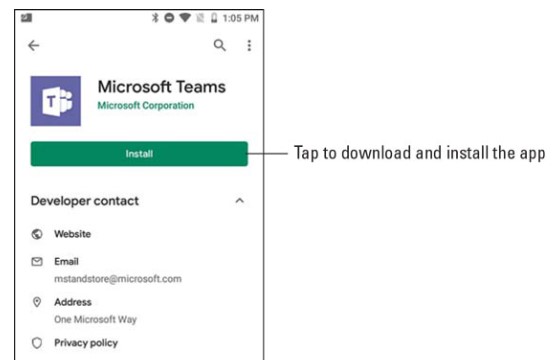
Install just like you would install any other app. It will probably look something like one of these two screenshots depending on if you have ios or android:
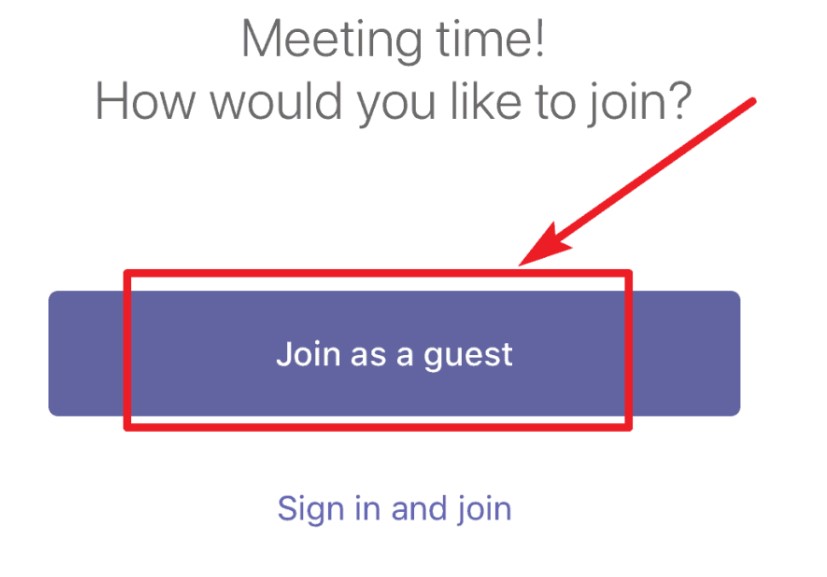
After the installation is complete go back and try clicking the meeting join link again. This time your newly installed teams app should open automatically. If prompted click the button that says "Join as a guest"
Enter your full name and click "Join meeting"

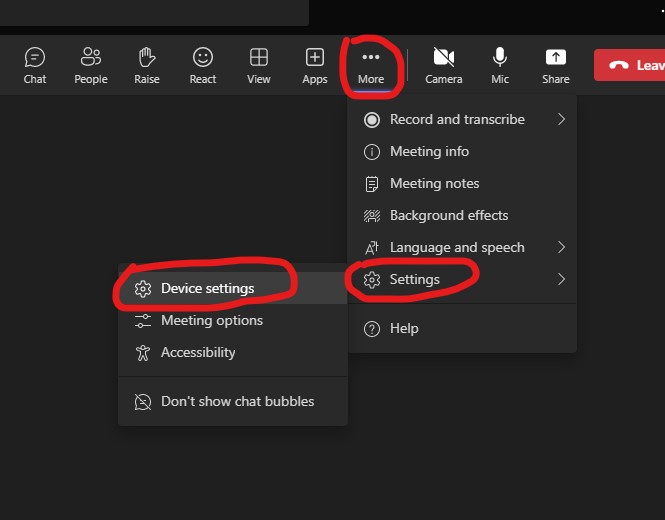
Devices sometimes have multiple microphone or speaker options. If this is the case sometimes it may be necessary to manually select which one you want Microsoft Teams to use. Click the "... More" button on the right side of the window > click Settings > click Device settings.
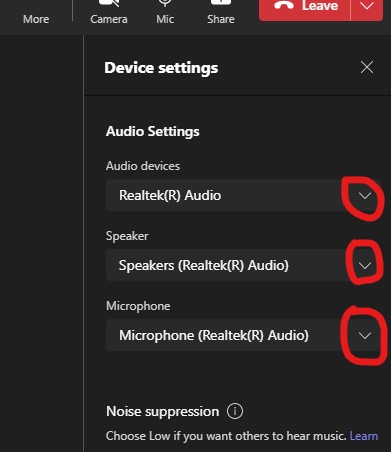
In the Device settings window see if there are alternative options available in the drop down selections for Audio devices, Speaker, and/or Microphone.
If no devices are available you may not have a usable microphone or speaker or it may not be installed correctly. The easiest (short term) solution may be to try a different device (phone, tablet, laptop, etc).
How to join the meeting
Meetings are conducted virtually using Microsoft Teams. You will need a computer, tablet, or mobile device to access the meeting, view shared content, and participate in any voting.The online meeting space can be accessed at any time if you want to confirm your device's ability to join before the actual meeting date.
Youtube, bing, or google search are all excellent resources for troubleshooting. You can also email if you have questions or issues.
Joining the meeting using a browser on a windows PC
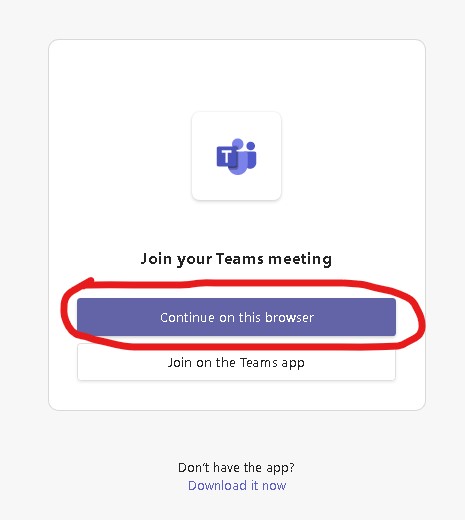
Click the meeting link. If you see something like the following image click the "Continue on this browser" button.On the next screen enter your full name and click the "Join now" button.
Joining using the app using a mobile device
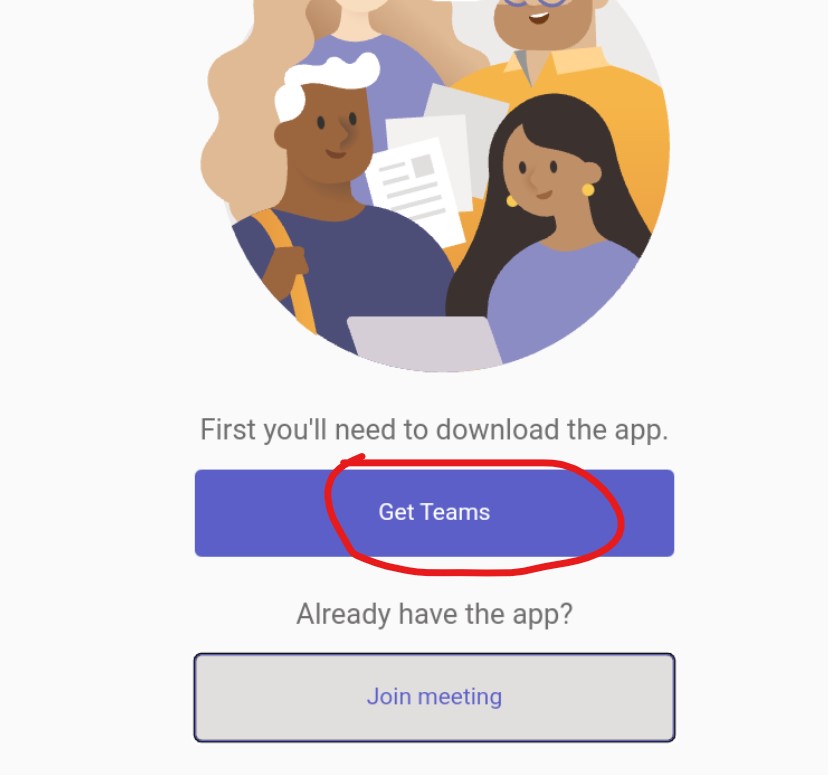
After accessing the meeting link you should see an option labeled "Get Teams". Clicking the link should automatically take you to the related app store for your platform (ios or android)Install just like you would install any other app. It will probably look something like one of these two screenshots depending on if you have ios or android:
After the installation is complete go back and try clicking the meeting join link again. This time your newly installed teams app should open automatically. If prompted click the button that says "Join as a guest"
Enter your full name and click "Join meeting"
Common audio issue
If no one is able to hear you first make sure you arn't muted. Clicking the "Mic" button will toggle your mute setting. The following screenshot is on PC but the button icon will look similar on mobile devices as well.Devices sometimes have multiple microphone or speaker options. If this is the case sometimes it may be necessary to manually select which one you want Microsoft Teams to use. Click the "... More" button on the right side of the window > click Settings > click Device settings.
In the Device settings window see if there are alternative options available in the drop down selections for Audio devices, Speaker, and/or Microphone.
If no devices are available you may not have a usable microphone or speaker or it may not be installed correctly. The easiest (short term) solution may be to try a different device (phone, tablet, laptop, etc).
Questions?
Email: webmaster@yodelin.org